How To Use Tailwind CSS with CodeSandbox

Recently, I was writing about a custom hook for handling form inputs, and I needed to use CodeSandBox to demonstrate what I was teaching more interactively.
The Problem
The process was going smoothly until I encountered a challenge. I was using Tailwind CSS for styling, and I discovered that adding and installing Tailwind CSS as a dependency was not as straightforward as I thought it would be.
Another issue was that I was behind schedule and couldn’t spare the time to jury-rig the settings of CodeSandbox to accommodate Tailwind CSS as I was getting familiar with the platform. The result? I had a form that was not aesthetically pleasing, as shown in the image below.

My research took me to several sites until I found an easy solution. For anyone who has challenges using Tailwind CSS on CodeSandbox, here is an easy solution you can apply.
A Quick Fix
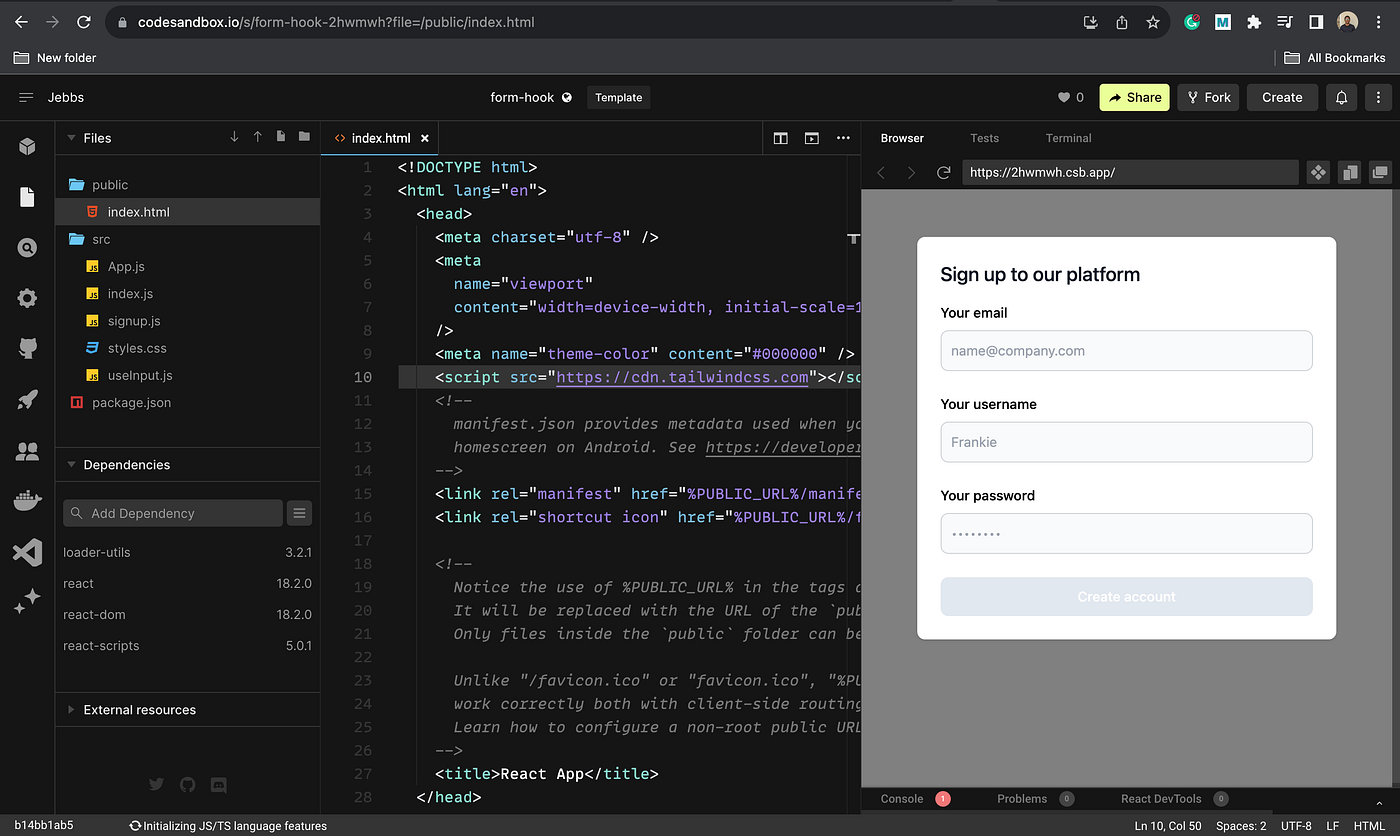
In the index.html file, input this CDN link to the tailwind CSS stylesheet.
<script src="https://cdn.tailwindcss.com"></script>
So, the head tag of your HTML file should look like this:
  <head>
    <meta charset="utf-8" />
    <meta
      name="viewport"
      content="width=device-width, initial-scale=1, shrink-to-fit=no"
    />
    <meta name="theme-color" content="#000000" />
    <script src="https://cdn.tailwindcss.com"></script>
    <!--
      manifest.json provides metadata used when your web app is added to the
      homescreen on Android. See https://developers.google.com/web/fundamentals/engage-and-retain/web-app-manifest/
    -->
    <link rel="manifest" href="%PUBLIC_URL%/manifest.json" />
    <link rel="shortcut icon" href="%PUBLIC_URL%/favicon.ico" />

    <!--
      Notice the use of %PUBLIC_URL% in the tags above.
      It will be replaced with the URL of the `public` folder during the build.
      Only files inside the `public` folder can be referenced from the HTML.

      Unlike "/favicon.ico" or "favicon.ico", "%PUBLIC_URL%/favicon.ico" will
      work correctly both with client-side routing and a non-root public URL.
      Learn how to configure a non-root public URL by running `npm run build`.
    -->
    <title>React App</title>
  </head>
After adding the script tag, refresh the page, and you should see your styling come to life like mine did below 👇
Note: This is a temporary solution. If you are still looking for proper integration, I will write about it in another post.


